AIP
Connect Slack
Bring your Agent into Slack to ask questions, work with files, and collaborate with your team in channels or direct messages.
Before you start
Create and enable an Agent in AIP. You need permission to install apps in the target Slack workspace. If approval is required, ask a workspace administrator to approve the installation. Keep AIP and the Slack App settings open.
Each Slack App has one Events Request URL. Create a separate App if an existing one serves another channel. See Slack's HTTP callback documentation.
Create a Slack App
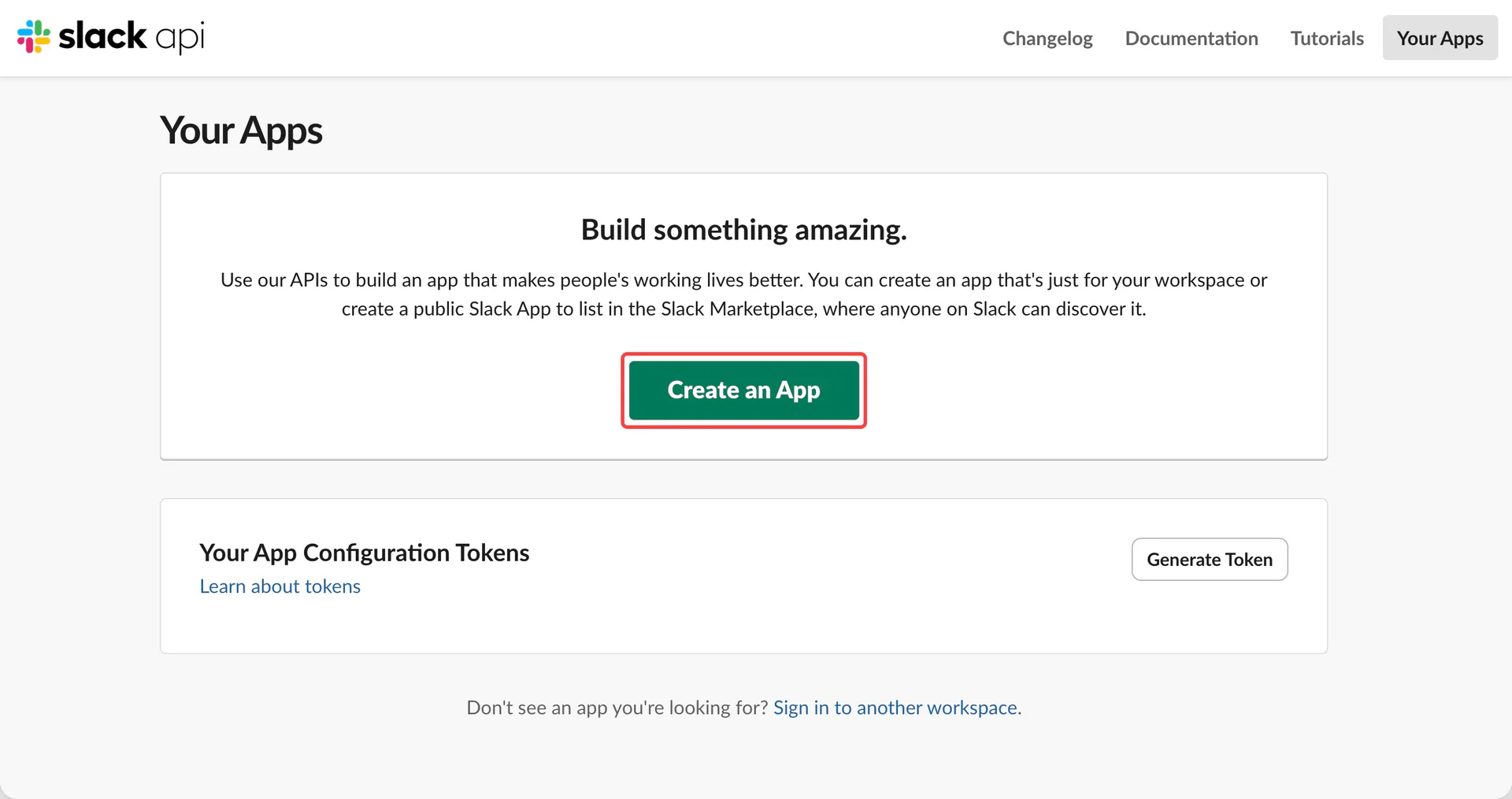
Open Slack Apps and select Create an App.
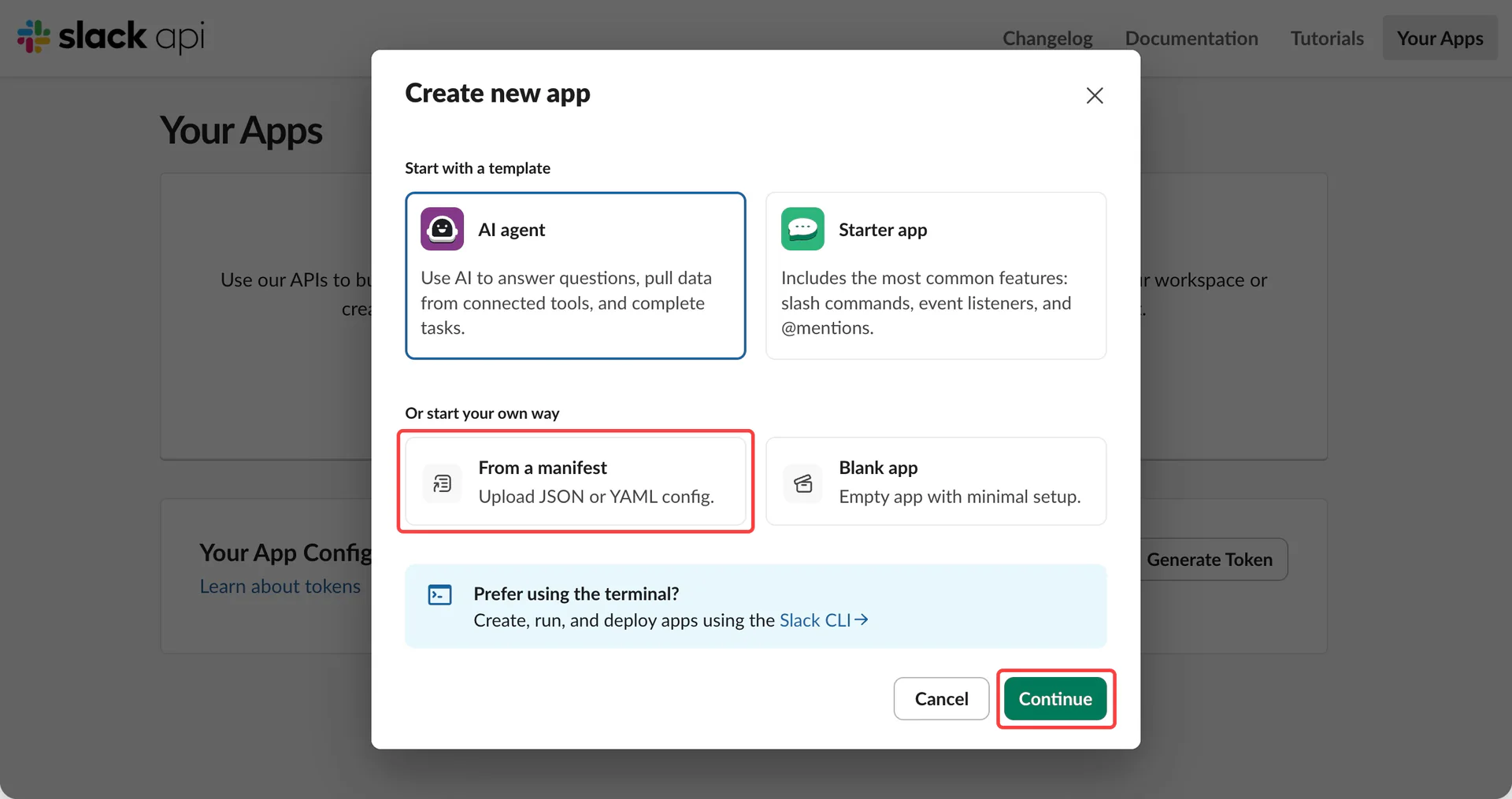
Choose From a manifest, select your workspace, switch to JSON, and paste the full configuration below. Review the app details and finish creating it.
Slack App Manifest (complete JSON)
{
  "display_information": {
    "name": "HAST Agent",
    "description": "Agent conversations, channel history, public search and files"
  },
  "features": {
    "bot_user": {
      "display_name": "hast-agent",
      "always_online": false
    },
    "app_home": {
      "home_tab_enabled": false,
      "messages_tab_enabled": true,
      "messages_tab_read_only_enabled": false
    },
    "agent_view": {
      "agent_description": "Ask your HAST Agent for help with messages, history and files."
    }
  },
  "oauth_config": {
    "scopes": {
      "bot": [
        "app_mentions:read",
        "assistant:write",
        "channels:history",
        "channels:read",
        "chat:write",
        "emoji:read",
        "files:read",
        "files:write",
        "groups:history",
        "groups:read",
        "im:history",
        "im:read",
        "im:write",
        "mpim:history",
        "mpim:read",
        "mpim:write",
        "pins:read",
        "pins:write",
        "reactions:read",
        "reactions:write",
        "search:read.public",
        "users:read"
      ]
    }
  },
  "settings": {
    "event_subscriptions": {
      "request_url": "https://example.com/slack/events",
      "bot_events": [
        "app_mention",
        "message.channels",
        "message.groups",
        "message.im",
        "message.mpim"
      ]
    },
    "socket_mode_enabled": false,
    "org_deploy_enabled": false,
    "token_rotation_enabled": false
  }
}
You can change the app name and description. Replace the placeholder https://example.com/slack/events after obtaining the AIP callback. The placeholder does not receive your workspace messages.
Confirm that Socket Mode is off. For direct messages, enable Messages Tab in App Home and allow users to send messages to the App.
Already selected AI agent?
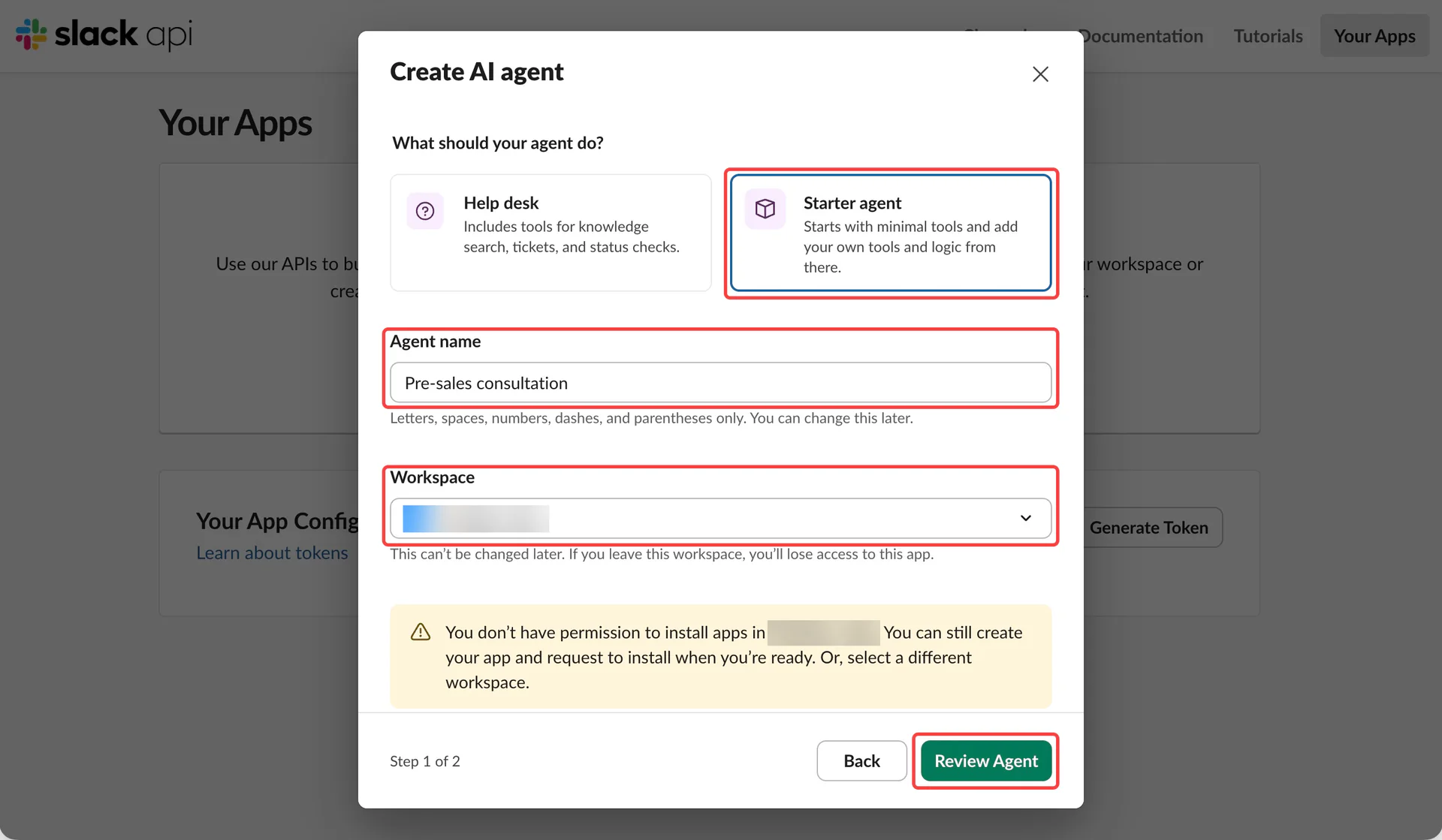
If you chose AI agent, select Starter agent, enter an app name, choose the target workspace, and click Review Agent. Skip this section if you created the App from the Manifest above.
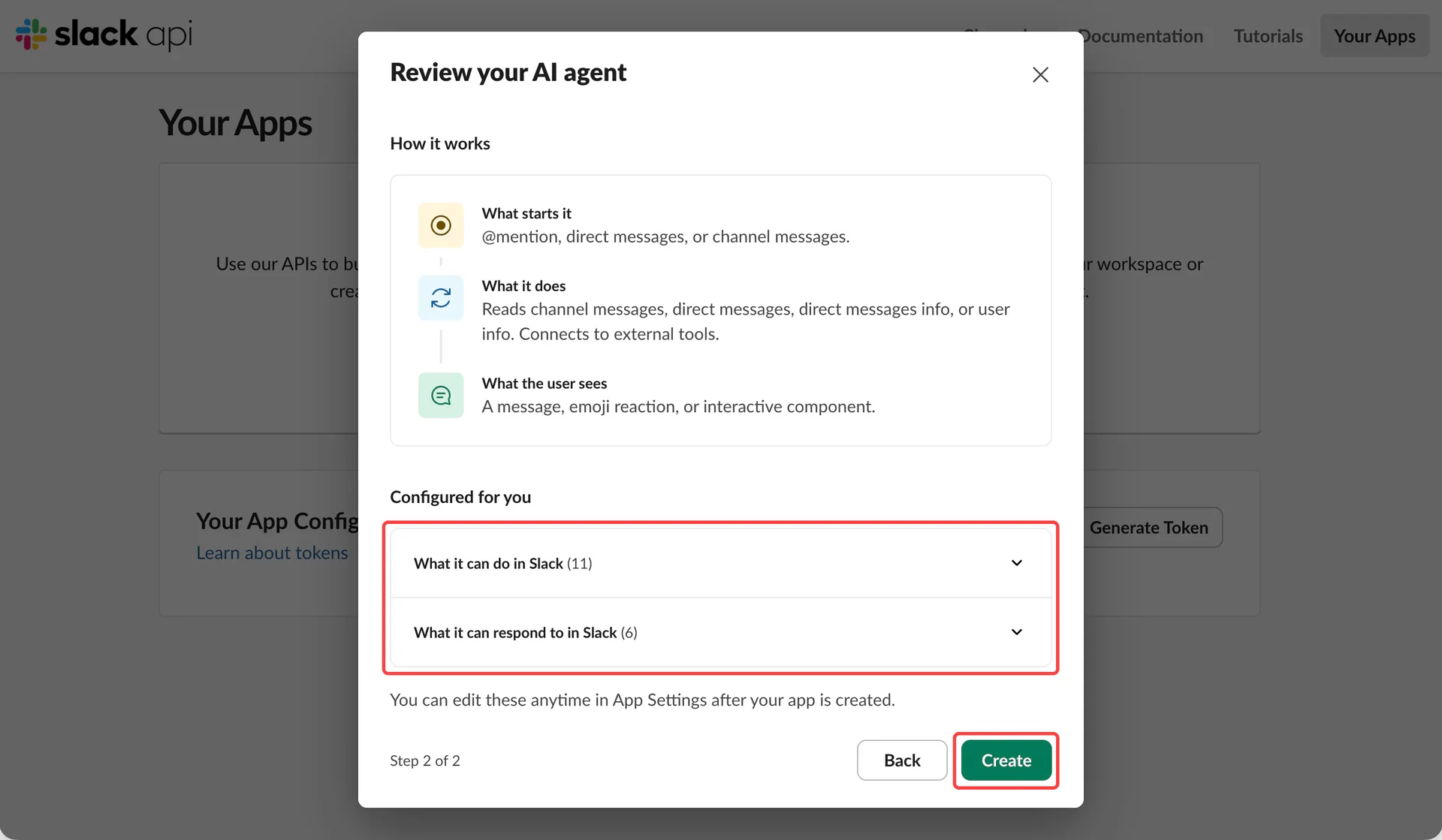
Review the app details and permissions, then click Create. Open App Manifest and add the permissions and events from the complete JSON above before installing.
Install in your workspace
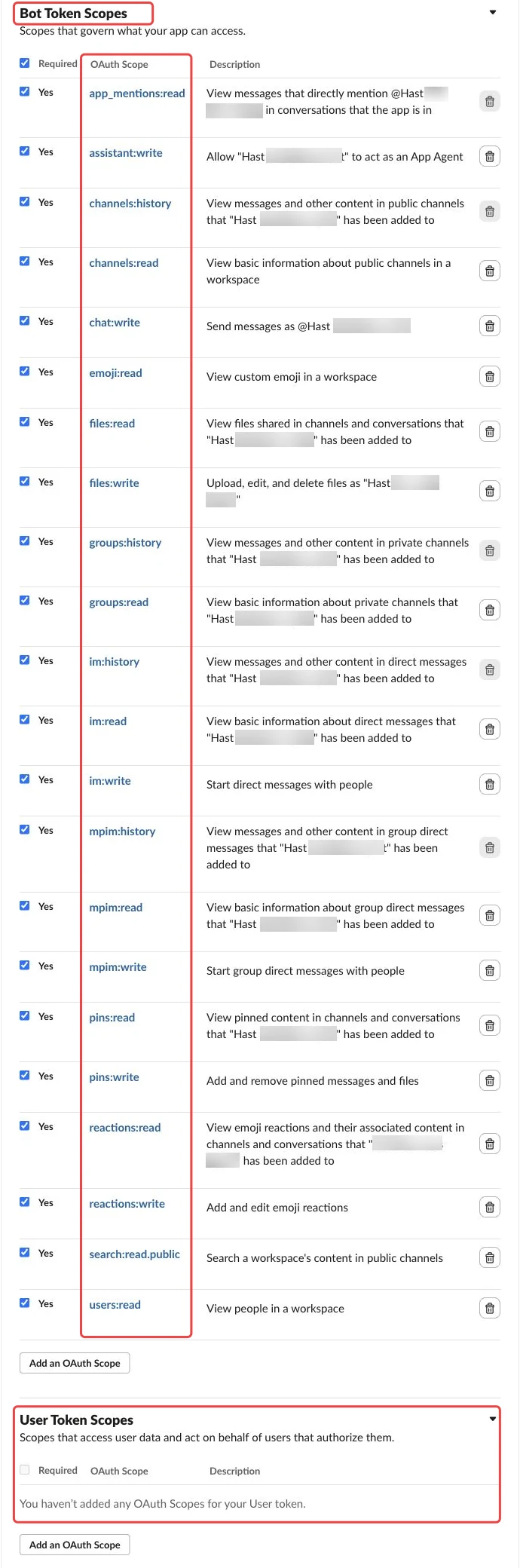
Open OAuth & Permissions, add the 22 scopes below under Bot Token Scopes, then click Install to Workspace.
| Purpose | Scopes |
|---|---|
| Mentions and Agent | app_mentions:read, assistant:write |
| Channels and messages | channels:history, channels:read, groups:history, groups:read, chat:write |
| Direct messages | im:history, im:read, im:write |
| Group direct messages | mpim:history, mpim:read, mpim:write |
| Files | files:read, files:write |
| Emoji and reactions | emoji:read, reactions:read, reactions:write |
| Pins | pins:read, pins:write |
| Public search and users | search:read.public, users:read |
Leave User Token Scopes empty.
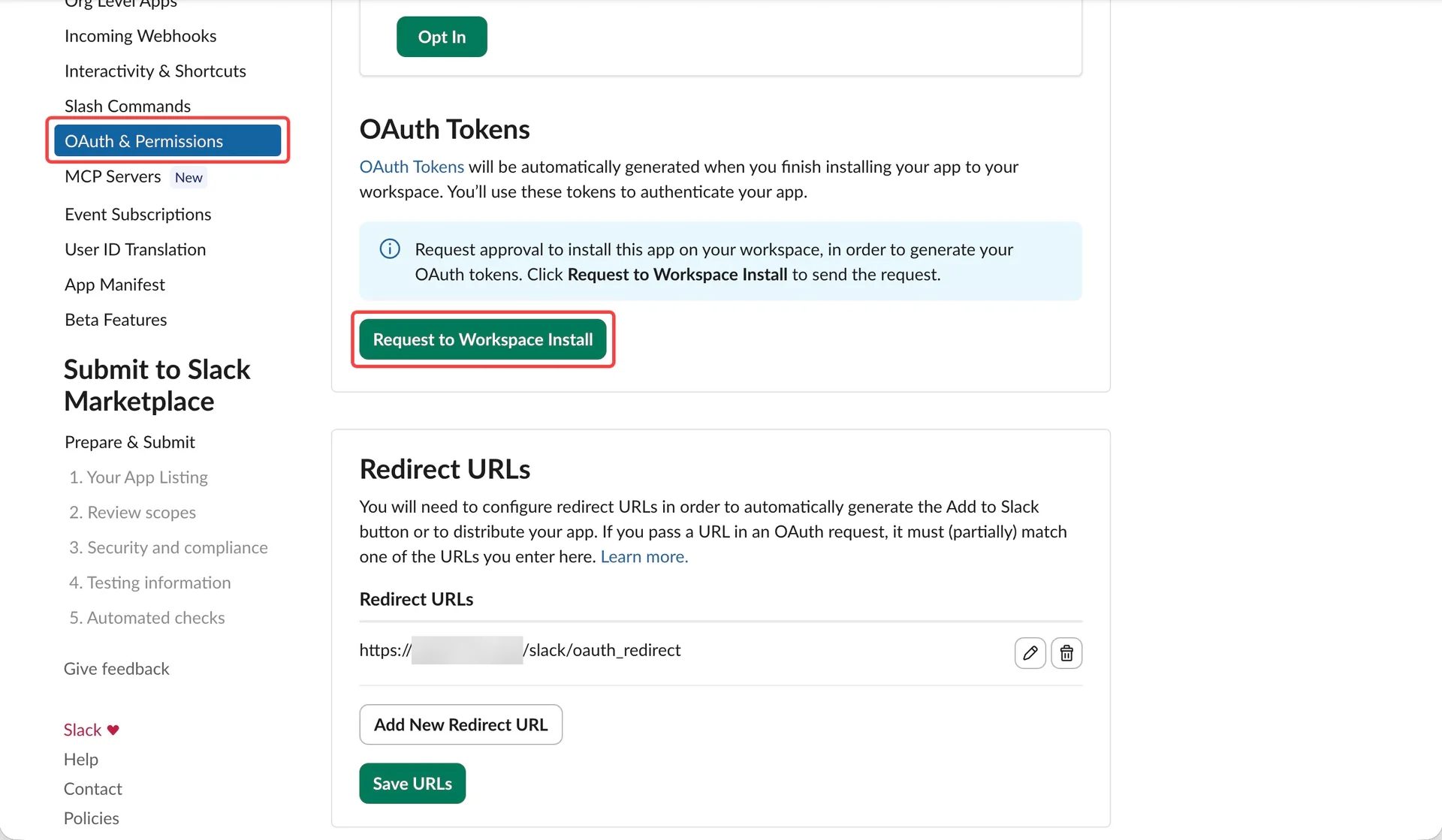
If you see Request to Workspace Install, submit a request and wait for administrator approval before continuing the installation.
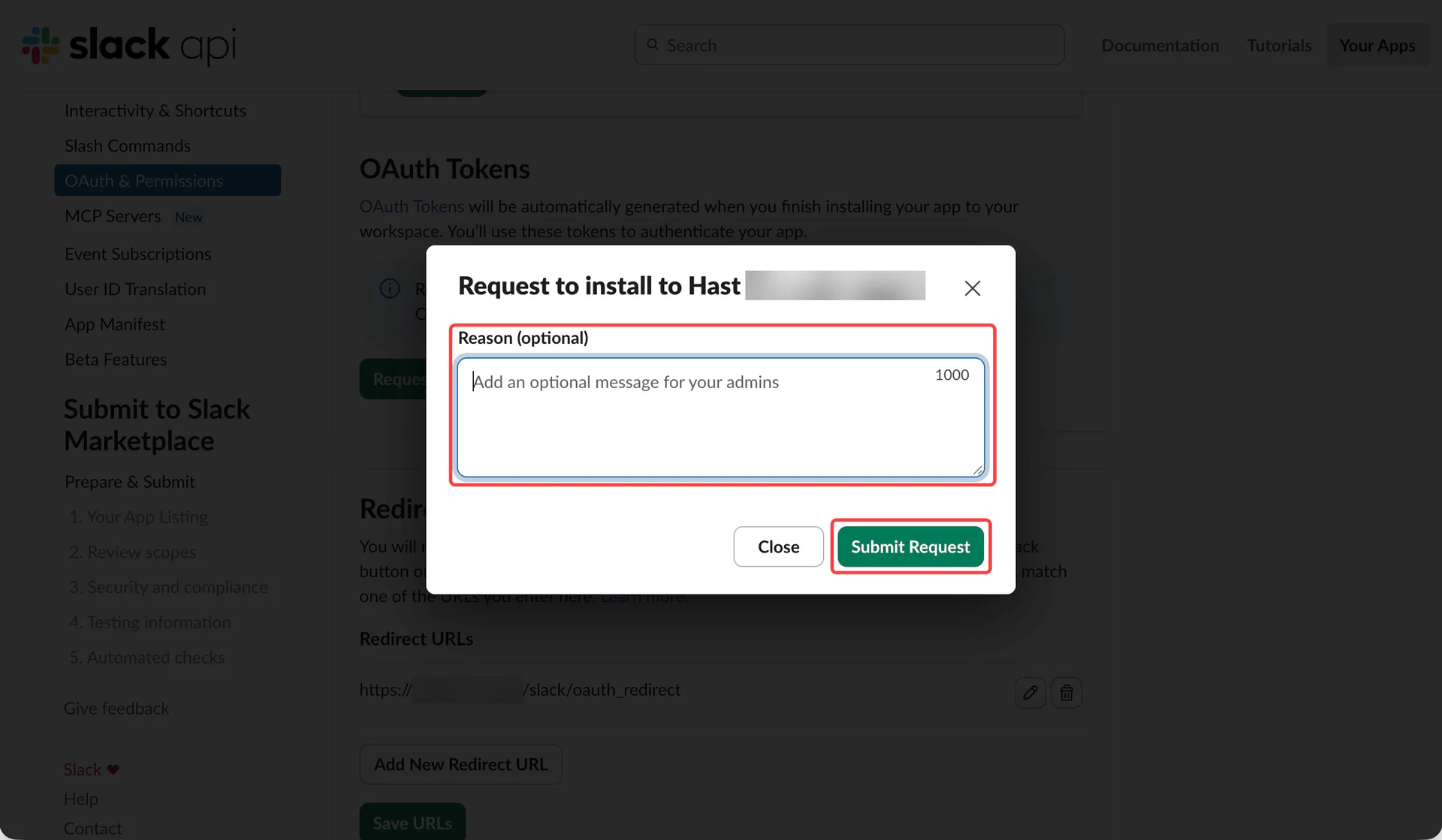
In the request dialog, fill in Reason if needed and click Submit Request. Submitting a request does not complete installation. Wait for administrator approval before continuing.
The Redirect URLs field here is not the message callback. Configure the message callback in Event Subscriptions in step 4.
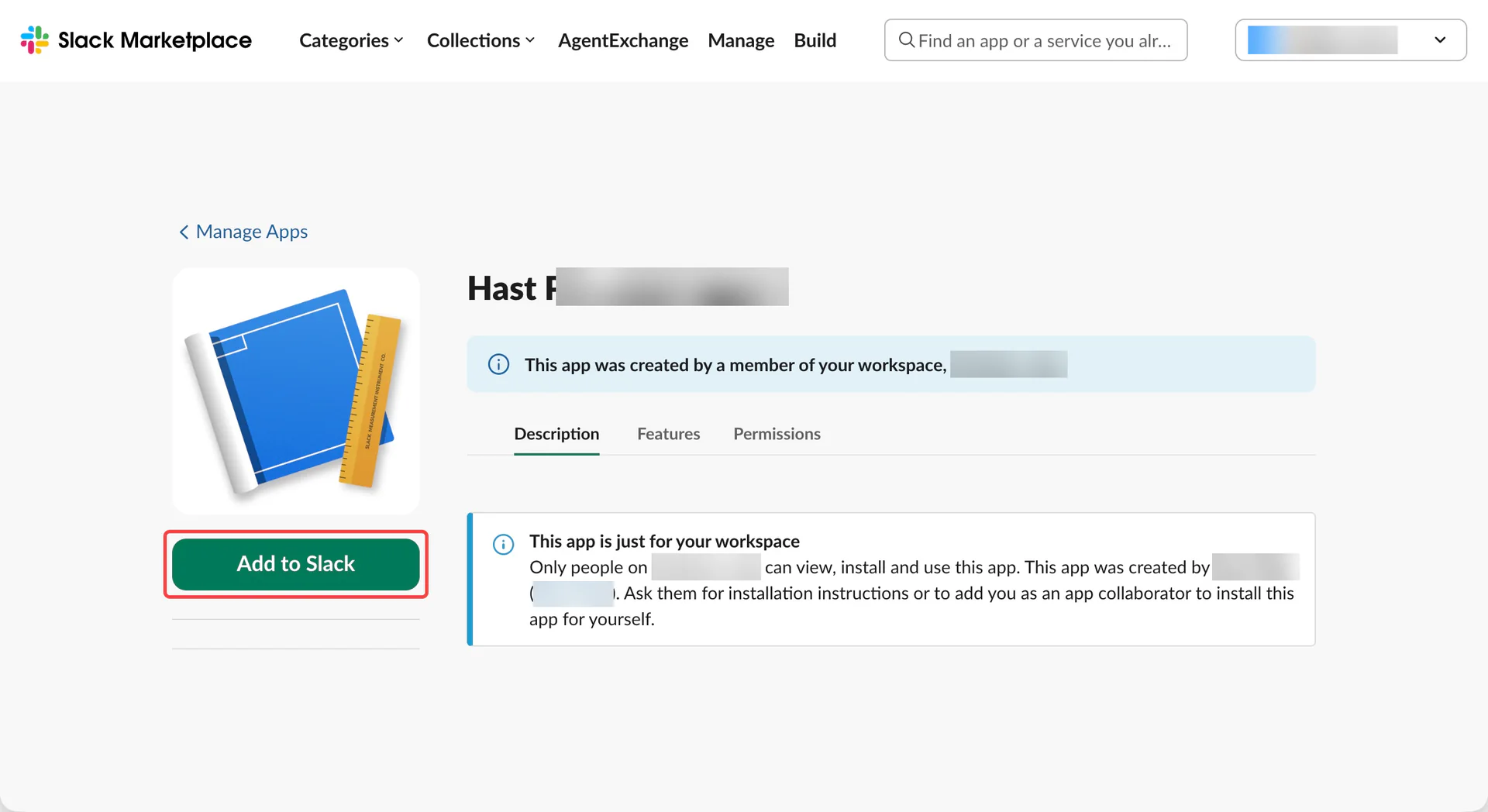
If the app installation page opens next, click Add to Slack to reach authorization. If you are already on the authorization page, continue to the next step.
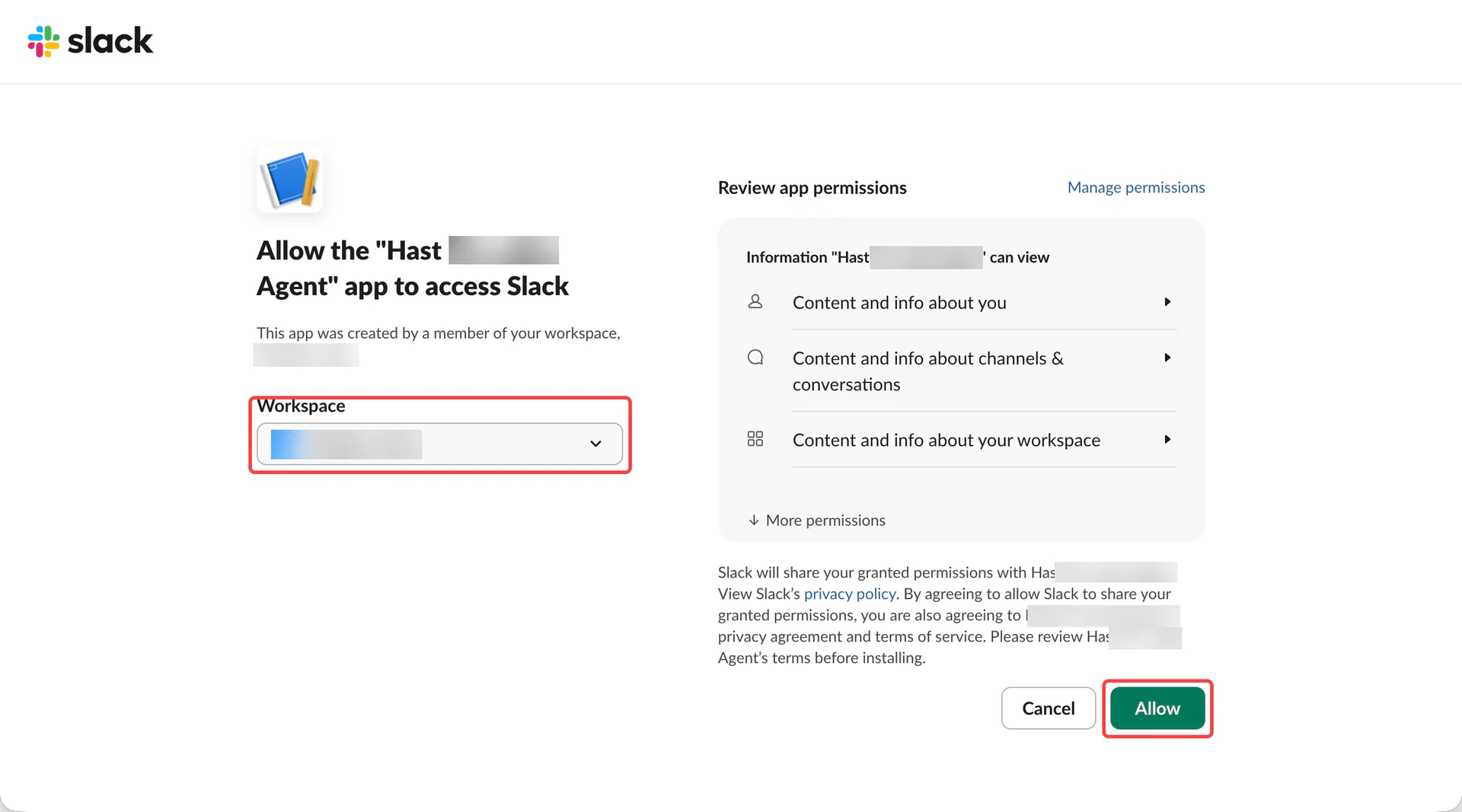
Confirm the target workspace on the authorization page, review the permissions, and select Allow. Reinstall the App after any scope changes so the new permissions take effect. Public search may require administrator approval.
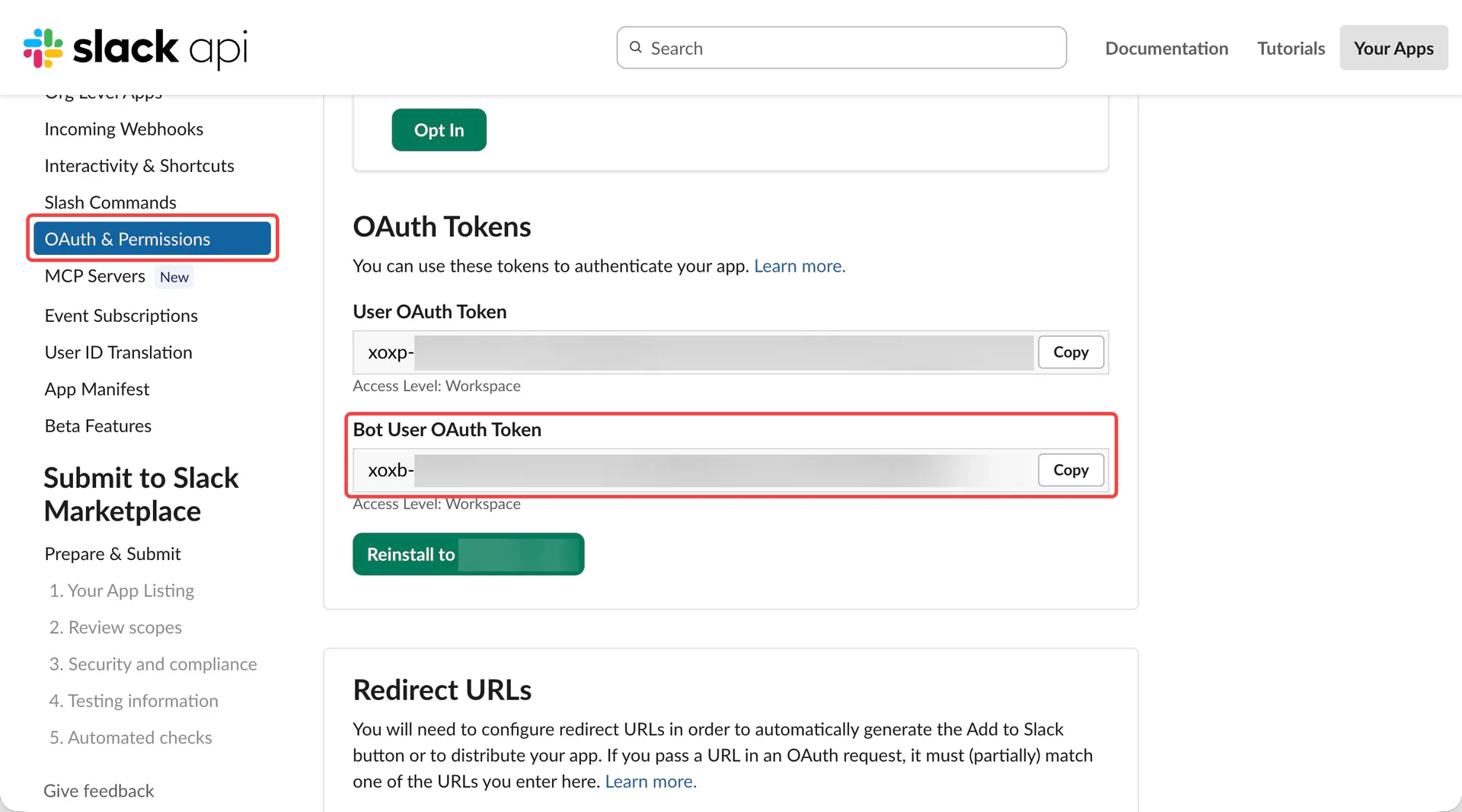
Return to OAuth & Permissions and copy the Bot User OAuth Token beginning with xoxb-. If a User OAuth Token is also shown, do not use it in AIP.
Create the channel in AIP
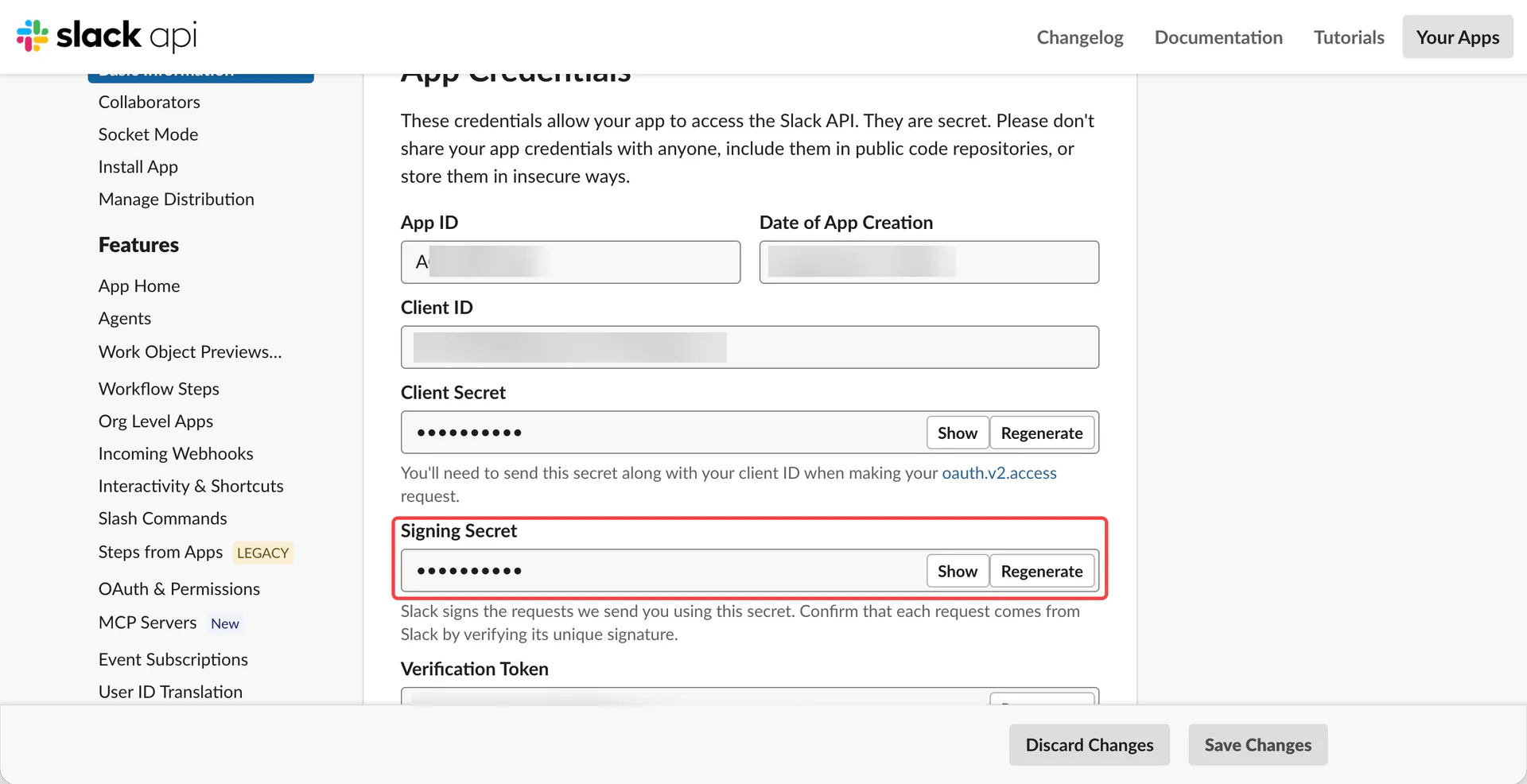
In the same Slack App, open Basic Information, find App Credentials, and click Show beside Signing Secret to reveal and copy it. This is separate from Client Secret and Verification Token on the same page.
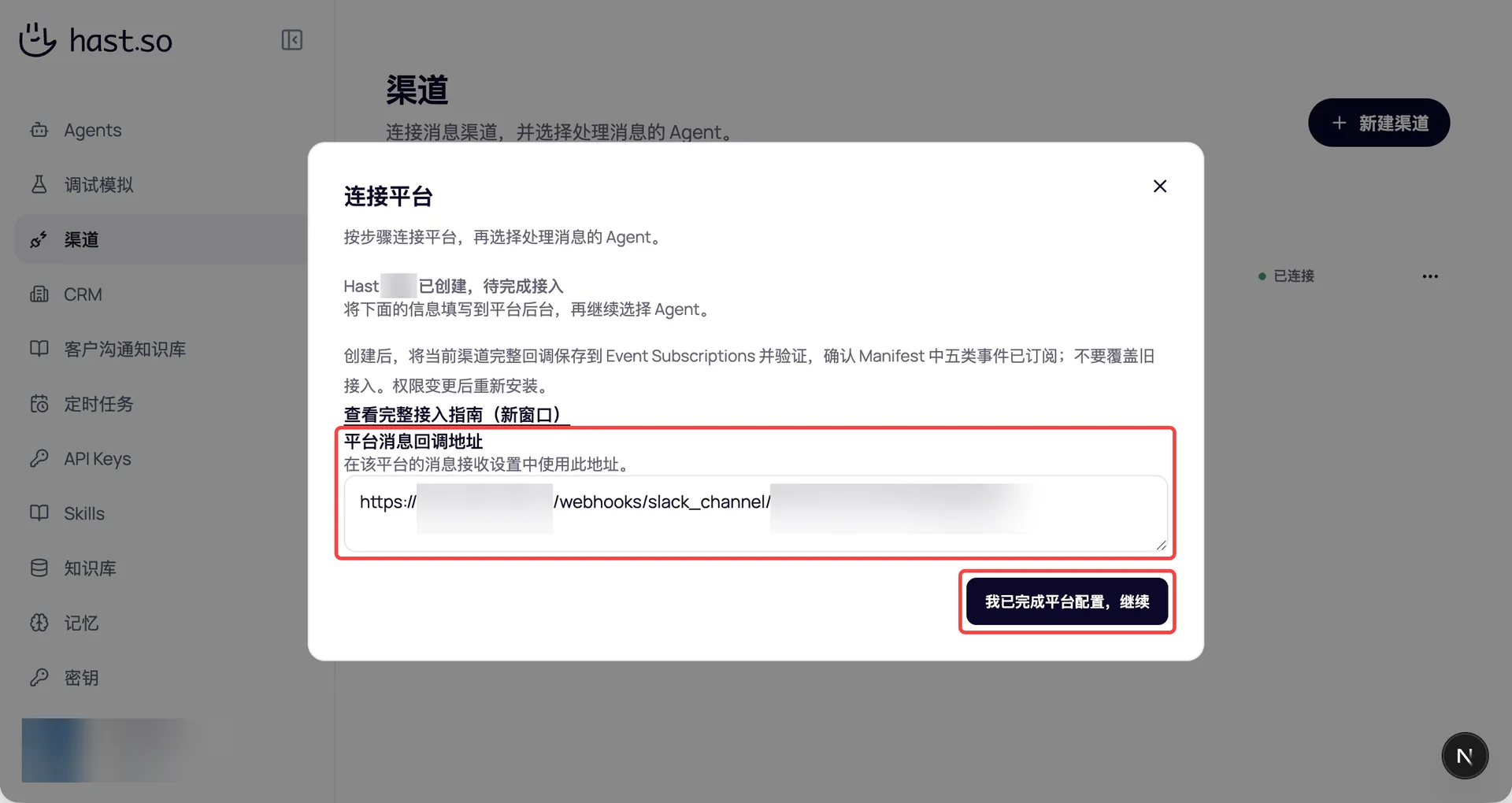
In AIP, open Channels, select New channel, and choose Slack. Enter a channel name, Bot User OAuth Token, and Signing Secret, then save to configure the callback.
Copy the complete platform message callback URL shown after creation. Keep this page open. Complete the Slack callback setup in the next step before clicking the continue button shown in the screenshot.
Verify the callback and save events
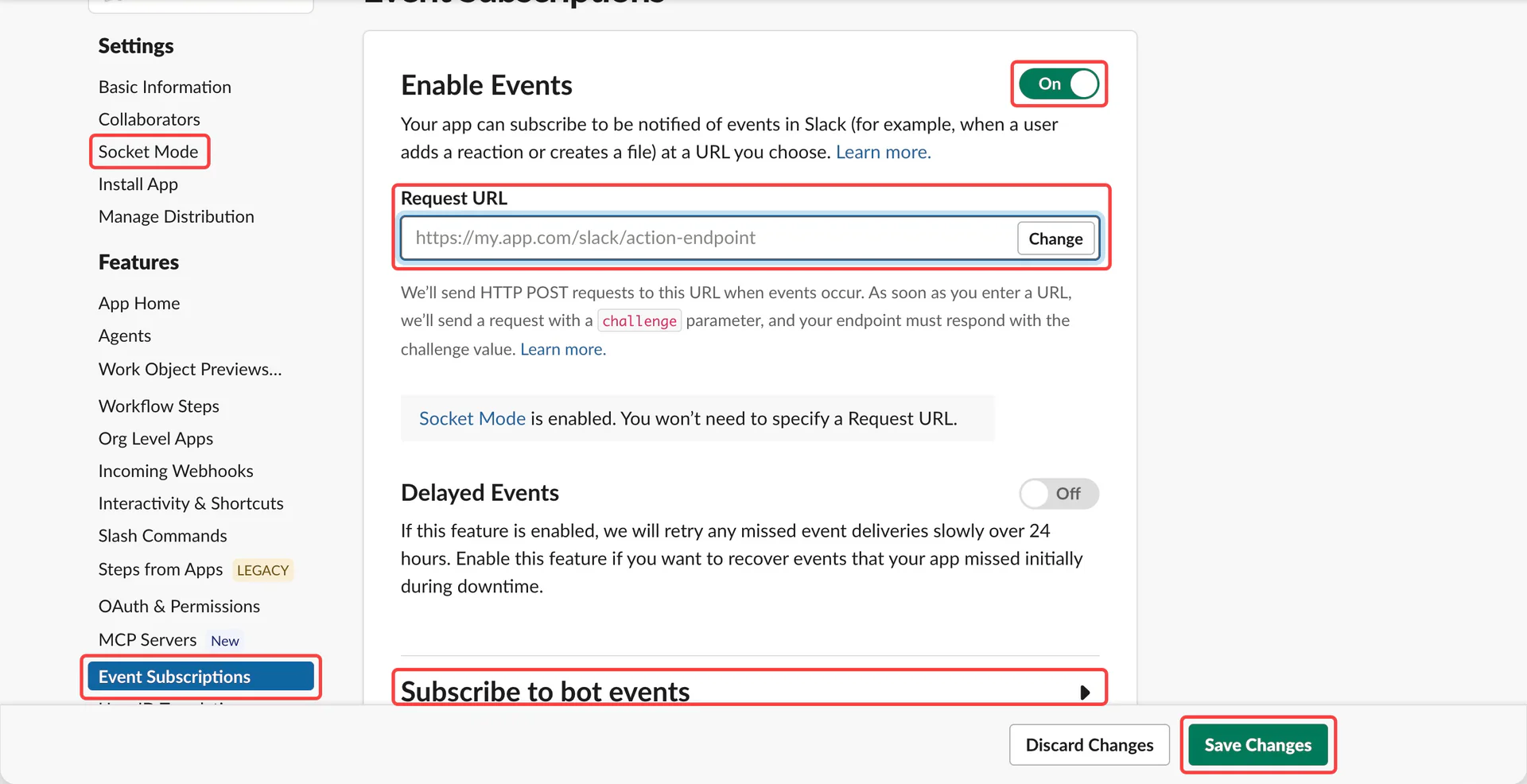
- Return to the Slack App settings and confirm
Socket Modeis off. - Open
Event Subscriptionsand turn onEnable Events. - Paste the complete AIP callback into
Request URLand wait forVerified. - Expand
Subscribe to bot eventsand check all five events below. - Select
Save Changes. Reinstall the App if Slack prompts you to do so.
| Bot event | Messages received |
|---|---|
app_mention | Mentions of the Bot |
message.channels | Public channel messages |
message.groups | Private channel messages |
message.im | Direct messages |
message.mpim | Group direct messages |
Invite the Bot to your test channel in Slack. Channel membership allows it to receive that channel's message events and read history within its permissions.
Select an Agent and test
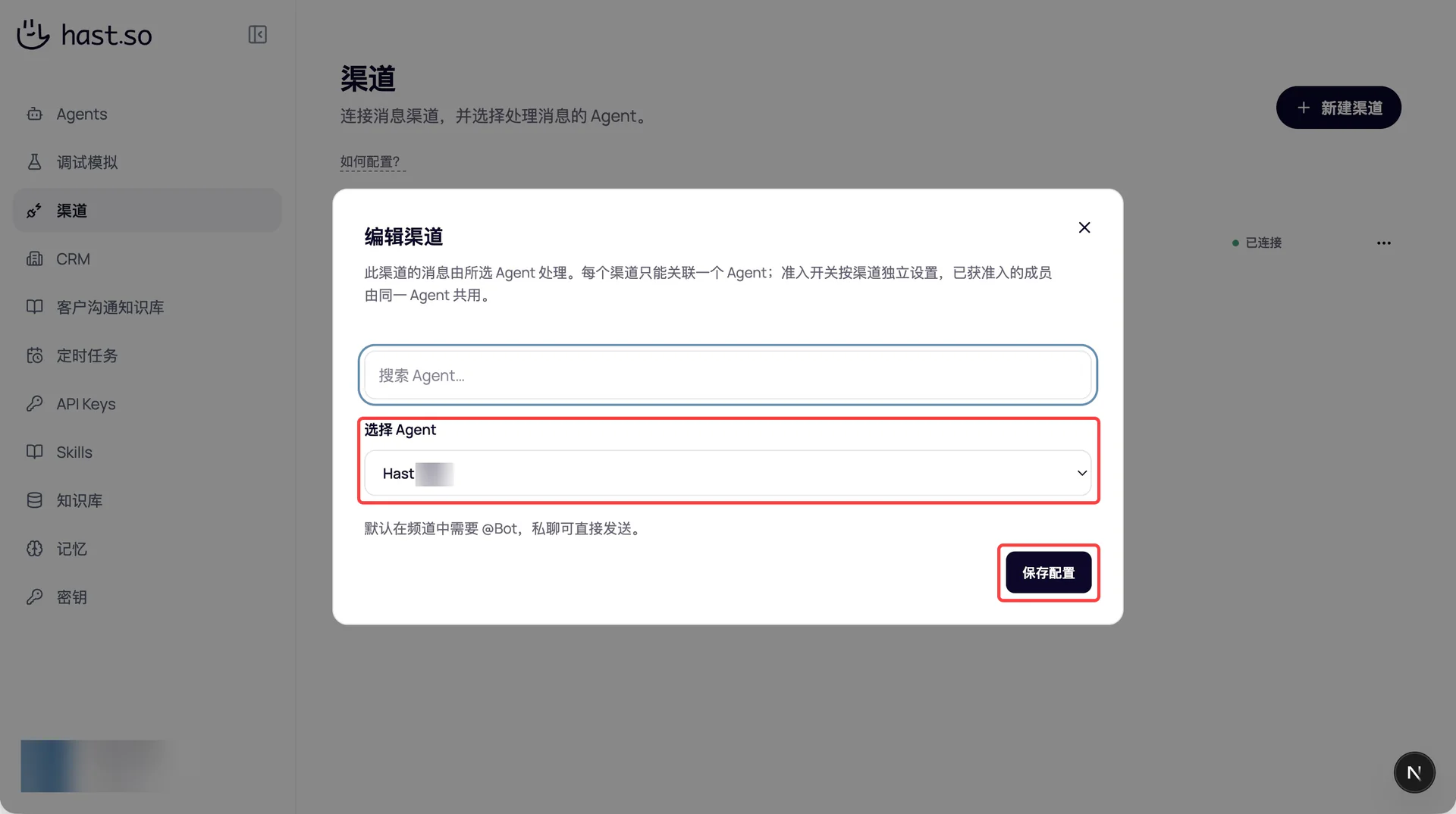
Return to AIP, confirm that platform setup is complete, select an enabled Agent, and save. You can later change the Agent by opening Edit channel from the channel menu.
In a channel the Bot has joined, send @Bot Hello, what can you help me with?, replacing @Bot with a mention of your App. Confirm that the Agent replies in the original channel or thread, then ask a follow-up question.
By default, every question in a channel or thread needs a mention. Direct messages do not. Slack uses workspace and channel membership without invitation codes.
For attachments, set the Agent's file access to a writable workspace and enable command execution and network access in its available capabilities. Save before testing. Send a small file without private information, mention the Bot to read it, and ask for a file attachment in return. Check both reading and delivery.
Configure reply triggers
In Slack reply trigger settings, configure channels or senders that do not need a mention. Use Channel IDs for channels and Slack User IDs or Bot IDs for senders. Separate multiple IDs with newlines or commas.
In channels the Bot has joined, any mention, channel exception, or sender exception can trigger a reply. For automated alerts, enter the alert Bot's ID. The Bot ignores its own messages.
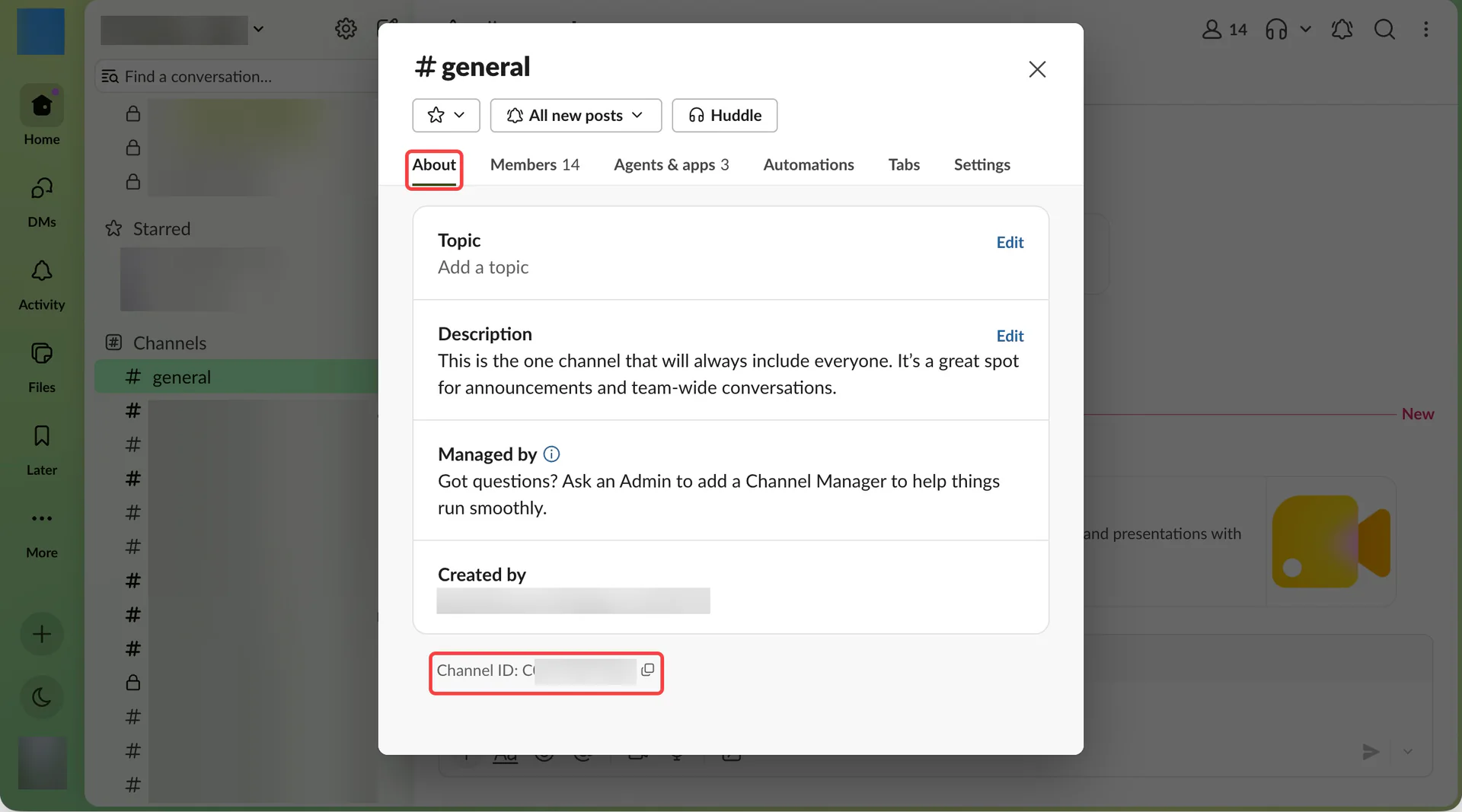
To find a Channel ID, click the channel name in Slack, open About, and copy Channel ID at the bottom.
Troubleshooting
Request URL verification fails
Check that Socket Mode is off, the full callback belongs to the current channel, and the Signing Secret comes from the same Slack App. The callback must be publicly reachable over HTTPS. Correct the settings, select Retry, and save after Verified appears.
Verified, but no reply
Check channel membership, all five event subscriptions, reinstallation after scope changes, the enabled Agent assigned in AIP, and the current reply triggers. Start by mentioning the Bot in a channel or sending it a direct message.
If it still does not reply, give an administrator the channel name and send time. For attachment failures, also check files:read, files:write, and the Agent's file access and capabilities.
An older channel stopped receiving messages
Check whether the same Slack App was reused and its Events Request URL replaced. Restore the old callback and create a separate App for the new channel.
Chat works, but search or history does not
For history, provide a Channel ID for a channel the Bot has joined. For thread replies, also provide the Thread ID. Slack permissions apply to both public and private channels.
Public search uses search:read.public and may include public channels the Bot has not joined. It does not provide global private-channel search. Check that the installed Token has the scope and administrator approval. See Slack's public search scope.